Task: Edit Time Off Plan
Assume you have a requirement to accrue employee's absence quota during January, beginning of the calendar year. The other requirement is that the quotas given is dependent on the Years of Service of the employee.
As per screenshot below, in the Accrued in Period field, only period 01/01/2019 - 31/01/2019 has accruals.
You need to setup accruals and assign it to the Time Off Plan
Drilling down the Accrual, you will need to setup the calculation and the Scheduling.
There were 2 logic here setup in the Scheduling field:
1. We want to set an effective date beginning January 01, 2019 onwards
2. We want to schedule this on every January
Setup a Value Comparison Calculation and enter Period: Period Start Date is greater than or equal to January 1, 2019
We can use a Workday delivered Value Comparison Calculation Scheduling: Period End Date Month = 01 (January) to schedule this every January.
Next, drilling down the Calculation under the Accrual, we setup the number of days to be given.
0 - 4 years = 10 Days
5 - 9 years = 13 Days
10 - 19 years = 17 Days
> 20 years = 20 Days
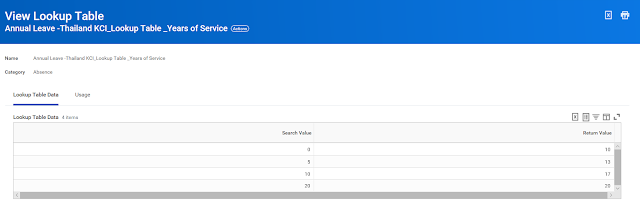 Assume we have a requirement based on the above table and the lookup table has been setup, we need to setup a Lookup Calculation to link it to this lookup table. On the first column, we can link it with the lookup table above that was setup. On the next column, we identify how to get the search value.
We are using the Worker's Continuous Service Date compare it with Calendar Year's Last Date and using the Interval Year to only obtain the Year value. For example, employee joins on 11/09/2016 and current period is Oct/2019. Workday will use 11/09/2016 vs 31/12/2019 and calculates 3 year and 3 months, but will only return the year value which is 3.


